


 RSMUS.com
Purpose: Add a custom workflow button to the Save &… menu on a transaction.
The steps below will aid in saving efficiency when users consistently save a record and immediately click another button to trigger an action. This allows custom button actions to be available under the Save &… menu on a record. Note: be conscious of the workflow action triggers – this option will save the record first.
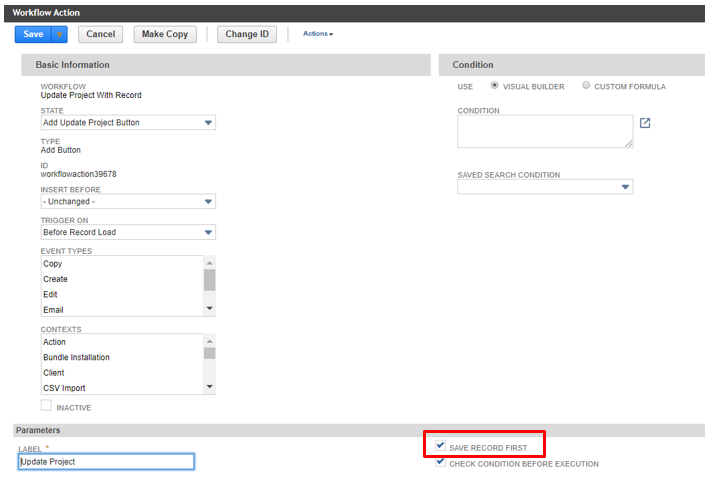
- Edit the “Add Button” workflow and check the “Save Record First” checkbox at the bottom, right corner.
- Navigate to a transaction in “Edit” mode and hover over “Save” button. Save & {button Label} is available to select.
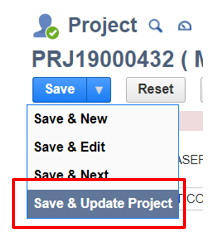
After completing these actions the Save drop-down menu will include the custom button action and trigger the workflow.
Would you like to receive more NetSuite Insights in your inbox?
RSM provides the best NetSuite updates, insights, events, tips and tricks. You’ll receive thought leading insights combined with innovative customer success stories that showcase NetSuite. Subscribe today!

Laura Moyer
Laura is a consulting leader that has over 7 years of experience leveraging NetSuite’s technology to help clients digitally transform their business to catalyze business growth and success. As a NetSuite certified ERP Consultant, Laura has experience designing improved business processes and implementing NetSuite ERP for clients in all industries, with her focus on the nonprofit and consumer products industries.