


 RSMUS.com
Since the deprecation of Basic Authentication in 2022 and the start of the new era of Office 365, there have been several challenges related to the configuration and processing of emails for invoices, statements, and EFT remittances from within the Dynamics GP application.
Below are some setup options and nuances that are required for each configuration.
NOTE: Whether using the MAPI or Exchange configuration, it is CRITICAL that the email account that is selected for sending the document(s) is accessed from within the email program and the sent folder is reviewed to confirm that the emails were actually sent.
First, let’s review the MAPI configuration.
Within the GP application, go to Microsoft Dynamics GP > Tools > Setup > System Preferences.

If the Server Type is set to MAPI, the following system requirements are needed:
- A 32-bit version of Outlook must be installed on the server or workstation where GP is being accessed.
- This 32-bit version of Outlook must be open, and a valid user profile must be set up and logged into.
- If the email account has MFA enabled, you may get a pop-up message for each document: “A program is trying to send an e-mail on your behalf.”
Note: Happens a lot with more secure environments and newer versions of Office
Issue: Outlook does not trust GP by default
Cause: Simply put, Outlook does not start with any GP specific trusts, so they need to be added.
Solution: The solution can be completed by following this Microsoft Learn link https://learn.microsoft.com/en-us/troubleshoot/outlook/security/a-program-is-trying-to-send-an-email-message-on-your-behalf
Key takeaways when using MAPI to email from GP:
- Outlook MUST be open on the workstation or server where the user is accessing GP.
- Before completing any posting process for the documents you are emailing, check the Outlook Sent Items folder to confirm the documents were sent.
- Exchange is the only current option for versions of GP older than 18.3.
- Exchange is the only current option for versions of GP older than 18.3.
- Exchange is the only current option for versions of GP older than 18.3.
- Doesn’t behave well with emails that utilize MFA.
Exchange configuration
Best option for GP 18.3 when using 64-bit Outlook, or for users who access GP via a Remote Desktop/Citrix connection.
Requires Exchange 2007 SP1 or higher (including Office 365).
Within the GP application, go to Microsoft Dynamics GP > Tools > Setup > System Preferences.
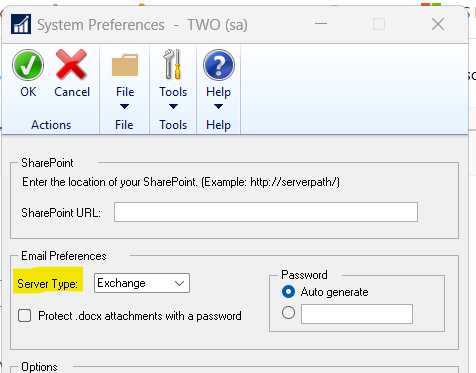
After the Server Type is set to Exchange, then an Application ID needs to be created with Microsoft Entra (formerly known as Azure). The steps for this process can be found here:
https://learn.microsoft.com/en-us/dynamics-gp/whats-new/multi-factor-authentication
After you acquire the Application ID, go to Microsoft Dynamics GP > Tools > Setup > Company > Email Settings. Enter the Application ID in the appropriate Properties field. For example, if you only have Desktop GP users, enter the Application ID into the Desktop Client Properties field.
After the Application ID is entered, click the Purchasing Series or Sales Series.

If the Application ID is accepted, you will see the login window below. (NOTE: During this setup process, the first user to log in must be an Entra/Azure administrator.)
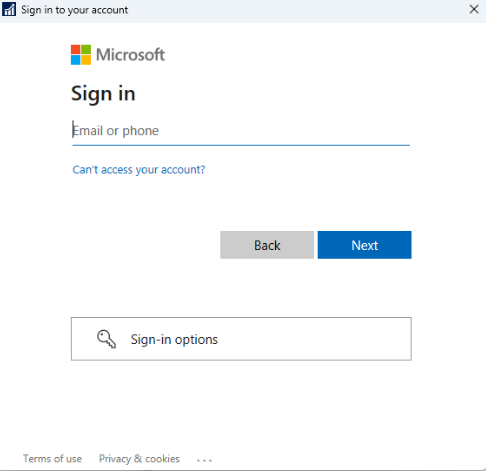
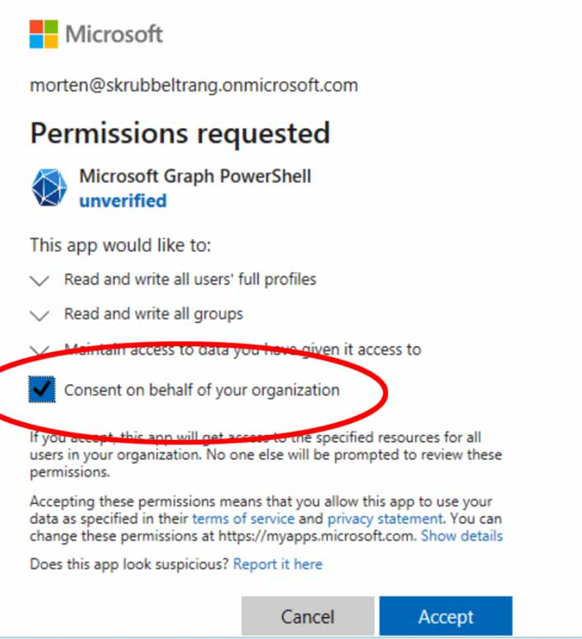
The Entra administrator will need to mark the box next to Consent for Organization and click Accept.
When using the Exchange configuration, you can email from any email account you prefer. For example, if you have a generic AP or AR email address. However, any GP user who needs to connect to this account to email must have the credentials to use when prompted with the below login screen.
The generic account can have delegated permissions, but it cannot be a shared mailbox.
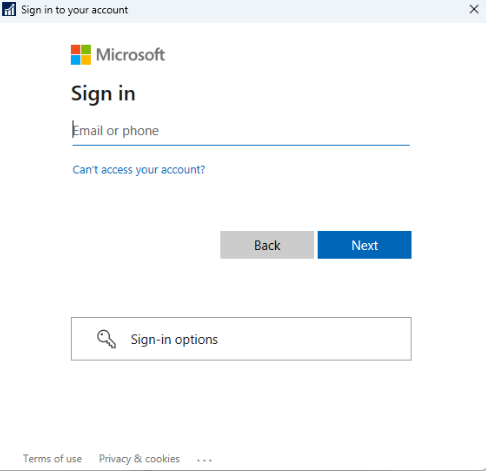
This connection between GP and Exchange is temporary. Throughout the day, users will be prompted to connect again if the connection drops.
Key takeaways when using Exchange to email from GP:
- Doesn’t require a local installation of Outlook.
- Before completing any posting process for the documents you are emailing, check the Outlook Sent Items folder to confirm the documents were sent.
- Only available in versions of GP 18.3 or newer.
- Works well with emails that utilize MFA.
GP Reports vs. Email Account
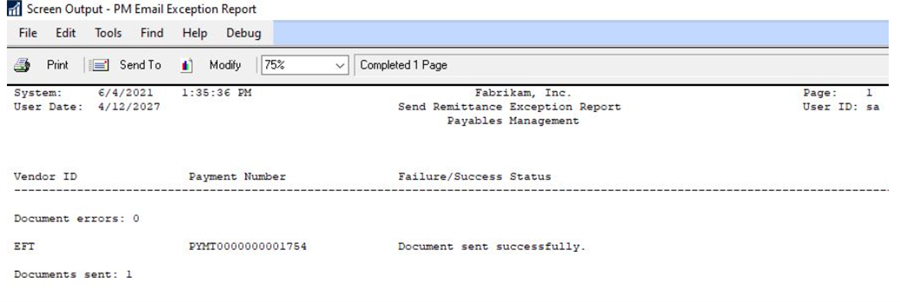
All batch email processing in GP includes Email Exception Reports (see examples below).
It is important to understand that these reports are only an internal check of the email configuration within the GP Customer and Vendor Card email setup.
They do not have any link to the email application that sends the documents.
As noted earlier, it is very important to review these reports for email setup issues within the GP application, and to review the email account’s Sent Items folder to confirm the document was actually sent.

Need additional support?
RSM offers access to Certified Microsoft Professionals, help desk and phone support, knowledge and experience with third-party products and dedicated account management. To learn more about who we are, contact our professionals at erp@rsmus.com or by phone at 855.437.7202.

Gina Lehmann
Gina focuses on Dynamics Great Plains. She is currently a member of the Dynamics GP support desk. She has been with RSM over 7 years. Gina’s area of expertise is in the Dynamics GP core modules (financial, purchasing, and sales). Gina has a BS in Accounting, and over 35 years of accounting experience; with an emphasis in hospitality accounting and systems.